
Workday Docs helps administrators create document templates that use Workday data inside supported business processes. Teams often use it for offers, employment agreements, onboarding documents, and other worker communications. The tool can reduce manual document assembly, but the quality of the result still depends on template ownership, data rules, security, testing, and release controls.
A production template carries business and legal consequences. A missing condition, incorrect field, or premature publication can send the wrong content to a worker or candidate. This guide explains how to plan, build, test, and govern Workday Docs without treating the template editor as the whole solution.
What Workday Docs does
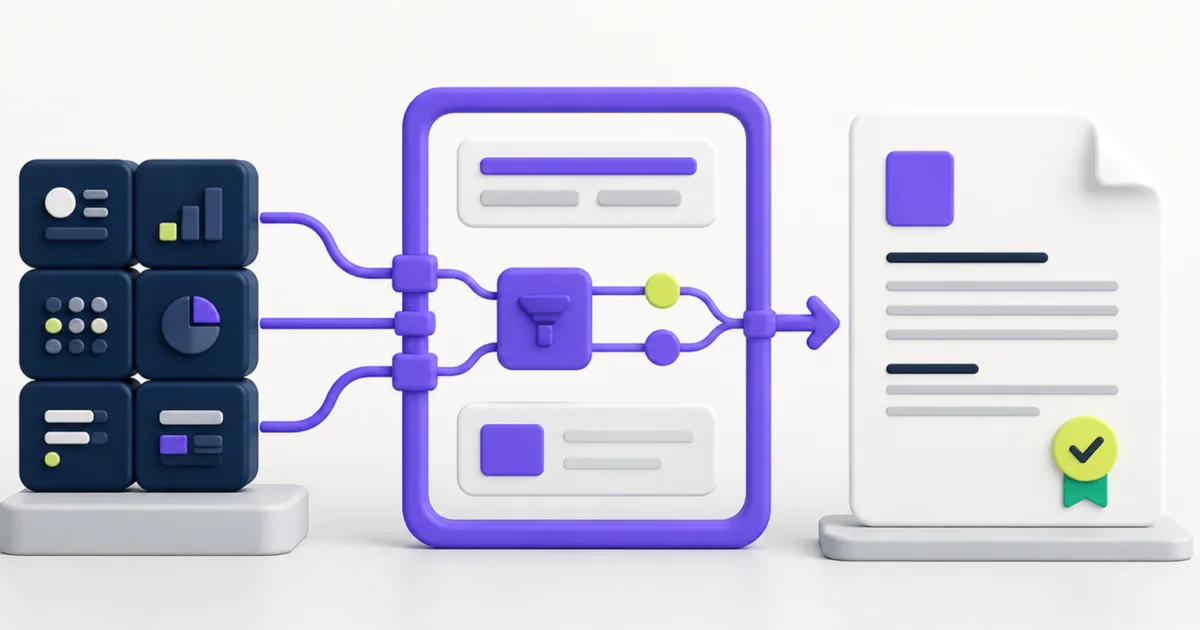
Workday Docs is a document-template application within Workday. Administrators create and manage templates through Workday Drive, insert data fields and condition rules, preview output, manage language instances, share templates, and publish them for use in supported business processes.
Workday describes Docs as an alternative to traditional text-block and BIRT-based document templates. Existing methods can remain in use beside Docs, so a team does not need to convert every template at once. The right choice depends on the document, required layout, supported process, maintenance model, and tenant features.
Start with Workday’s current Create and Publish Docs Templates guidance, then confirm the requirements and limitations in your tenant.
Plan the document before building the template
Define the document’s purpose, audience, source process, category, owner, reviewers, languages, and retention requirements before opening the editor. A copied offer letter may contain language that belongs to a different country, worker type, compensation plan, or approval path.
Document these decisions:
- Which business process generates the document?
- Which event data and worker data belong in the output?
- Which clauses change by country, company, worker type, or other condition?
- Which team owns the business wording?
- Who owns template configuration and support?
- Which reviewers must approve content before publication?
- Which languages require a maintained instance?
- How will the team test the final generated PDF?
Separate reusable business language from tenant configuration notes in your working materials. Workday Docs does not link repeated content across templates, so owners need a way to identify every template that contains a shared clause.
Set up security and ownership
Template creators need access to the Docs and Drive security domains. They also need access to the document category, data fields, and condition rules they use. Business-process permissions control who can configure generation and review steps, while Drive sharing controls who can view or edit template content.
Build a role matrix for template authors, business reviewers, business-process administrators, and users who generate or review documents. Test each role with representative security assignments. Broad administrator access can hide missing permissions that another author or reviewer will encounter.
Assign a durable owner
Each template has an individual owner. Name a backup and include ownership transfer in offboarding procedures. A template with an inactive owner may remain in a business process while no current administrator understands its logic or maintenance history.
Limit template editing access
Give edit access to the smallest practical group. Business stakeholders can review wording and output without receiving full configuration rights. Record who can publish changes, because publication can affect the next business-process event that uses the template.
Create a Workday Docs template
Administrators create a document template from Workday Drive, then select its source and category. The source connects the template to a supported business-process type. The category organizes the document and can affect which users can find or use it.
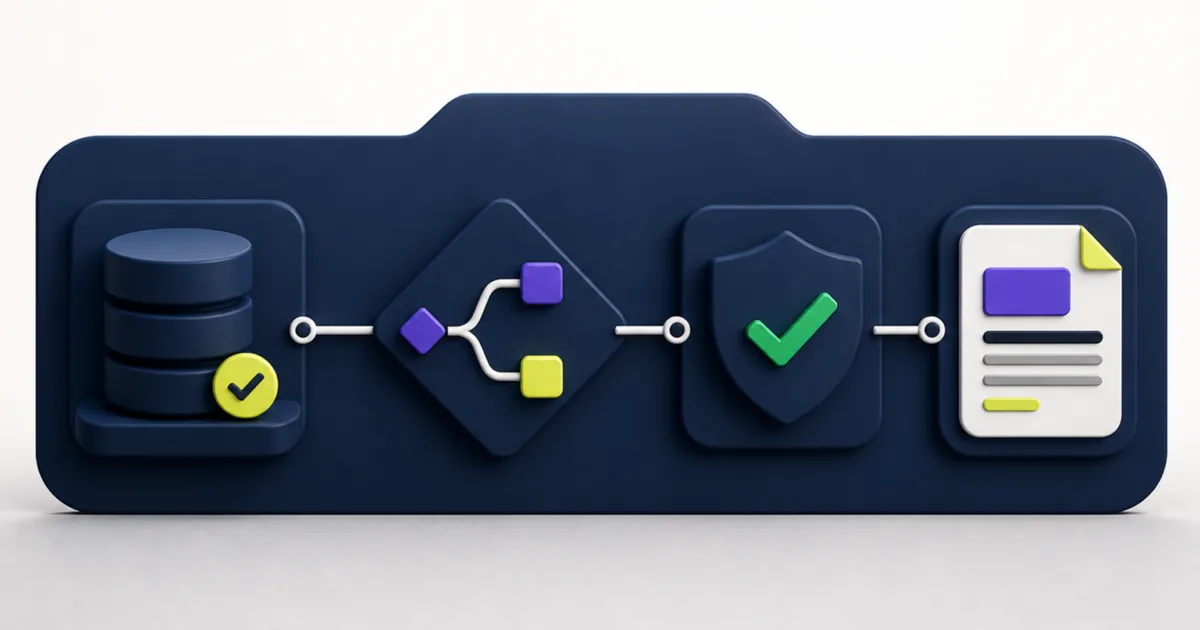
Choose the source and category with care. Workday’s current documentation states that administrators cannot change them after template creation. If either selection is wrong, create a new template rather than forcing the original into an unrelated use.
Insert data fields with a defined source
Use data fields that belong to the selected source and support the document requirement. Record the field name, business meaning, expected format, and sample value. Similar fields may differ by effective date, event context, or relationship to the primary object.
Test blank, long, and unexpected values. A name, address, job title, compensation amount, or date may fit the sample record but break the final layout for another population.
Use condition rules for real business differences
Condition rules can show or hide content based on event data. Use them for approved variations such as location, worker type, company, or employment terms. Keep each rule narrow, name it in plain language, and document the owner.
Avoid stacking several rules around overlapping content without a decision table. Test each valid combination plus a case that matches no condition. The template should not leave an unexplained blank section or include conflicting clauses.
Manage language instances as separate content
Workday Docs copies base-language content into a new language instance as a starting point. A qualified reviewer still needs to replace and approve the translated wording. Headers and footers also require language-specific maintenance.
Track translations outside the template with the owner, approval date, source version, and next review date. When the base language changes, identify every language instance that needs the same business update.
Design within the editor’s limits
Workday Docs supports text styles, data fields, condition rules, tables, images, headers, footers, page numbers, links, and page breaks. It does not provide unrestricted desktop-publishing control. Current Workday guidance notes that the editor and generated PDF use Roboto and do not support custom font selection.
Design for stable output:
- Use a clear heading and paragraph hierarchy.
- Keep tables narrow enough for the generated page.
- Test images at their final size and resolution.
- Reserve enough space for long names and translated content.
- Add page breaks where a section must stay together.
- Check which header or footer appears under each condition.
- Review every page of the generated PDF.
Do not copy text from an older text-block template and assume its fields or conditions will transfer. Workday warns that copy and paste does not preserve those elements in a Docs template.
Publish and connect the template to a business process
A draft template does not become active until an administrator publishes it and configures it in a supported business process. Add the Generate Document action step, select the published Drive document, and set the correct run-as user and step security for the process.
Workday recommends adding a Review Documents step when a process generates a document. Configure that review step to use the output from the Generate Document step rather than the template itself. Workday’s supported business-process reference explains the connection between generation and review.
Configure acknowledgment or electronic signature
The review step can support acknowledgment or signature options when the process and tenant configuration allow them. Confirm the integration, authentication, routing, signer experience, completed-document storage, and exception handling before release.
Do not describe a configured signature as proof that the document meets a legal requirement. Legal and compliance owners need to approve the wording, signature method, retention, and jurisdiction-specific process.
Test from event initiation to final PDF
A preview confirms layout under selected conditions. It does not prove that the full business process supplies the right data, routes to the right people, or stores the expected final document.
Run end-to-end scenarios that cover:
- Each supported country, company, worker type, and document category.
- Every condition rule and at least one unmatched case.
- Blank, maximum-length, and special-character field values.
- Each maintained language instance.
- Draft, generated, reviewed, acknowledged, and signed states.
- Corrections, rescinds, cancellations, and reissued documents.
- Author, reviewer, recipient, and administrator security.
- The downloaded PDF, including page breaks, tables, images, headers, and footers.
Compare generated content with approved source wording and known Workday records. Record the test evidence, defect owner, resolution, and approval before production use.
Control template changes and migration
Published Workday Docs templates do not use effective dating. Workday recommends copying a template, making changes in the copy, and replacing the original in the business process after approval. That approach gives the team a stable production version during development and testing.
Use a release record that lists the template, business process, source, category, change reason, affected populations, rules, languages, testing evidence, approvers, publication date, and rollback plan. Check every business process that points to the template before replacement.
Tenant migration also needs a controlled procedure. Download the template from the source tenant, upload it to the target tenant, confirm supported file types, update reference IDs where required, publish it, and retest the complete process. Do not treat a successful import as proof that fields, rules, security, and integrations behave the same.
Govern the Workday Docs catalog
Maintain a catalog of active templates with their owners, business processes, categories, languages, last approval dates, and support paths. Review the catalog after policy changes, Workday releases, business-process changes, acquisitions, reorganizations, and owner departures.
Teams with many templates need standards for names, descriptions, condition rules, images, approvals, testing, migration, and retirement. Connect document governance with broader reporting and release practices. EVOCS managed services can support Workday administration, release review, documentation, testing, and knowledge transfer.
Common Workday Docs problems
The wrong clause appears
Check the condition rule, event data, overlapping conditions, and fallback behavior. Test the same record in preview and through the business process to isolate template logic from process data.
A field is blank or incorrect
Confirm the selected source, field path, effective date, security, and run-as user. Trace the value to the event or worker record used during generation.
The final PDF differs from the editor
Review font constraints, table width, image size, page breaks, headers, footers, and long field values. Use the generated PDF as the acceptance artifact.
A published change reaches users too soon
Move future changes to a copied template, complete review and testing there, then replace the template in the business process through a controlled release.
Questions teams ask about Workday Docs
Does Workday Docs replace BIRT?
Workday Docs provides an alternative for supported document-generation use cases. BIRT, text blocks, and Docs can coexist. Choose the method that fits the document, layout, process, maintenance, and tenant requirements.
Can teams reuse content across templates?
Current Workday documentation says Docs does not link reusable content across templates. If the same clause appears in several templates, catalog those locations and update each approved copy when the wording changes.
Can a team change the source or category later?
Workday states that administrators cannot change a Docs template’s source or category after creation. Confirm both values during design and create a replacement template if the requirement changes.
Should teams test the preview or the generated document?
Test both. Preview helps authors check content and conditions, while the full business process confirms event data, routing, security, review, signature, storage, and final PDF output.
Build document generation that teams can maintain
Workday Docs gives administrators a practical way to combine approved wording with Workday data. Durable results come from controlled source fields, clear conditions, tested layouts, secure ownership, and disciplined publication.
EVOCS helps organizations design, test, migrate, and govern Workday document-generation processes. If your templates have grown difficult to maintain or business teams question their output, schedule a strategy conversation. We can help define the controls and delivery plan needed for a stable solution.