
Workday calculated fields let report writers turn delivered data into values that support reports, integrations, and business-process rules. A small field can solve a precise reporting gap. A large collection of undocumented fields can slow reports, hide logic, and make a tenant harder to maintain.
Teams need a design method that covers business objects, field scope, naming, testing, performance, security, and ownership. This guide gives report writers and Workday administrators a practical standard for building calculated fields that other people can understand and support.
Start with the reporting requirement
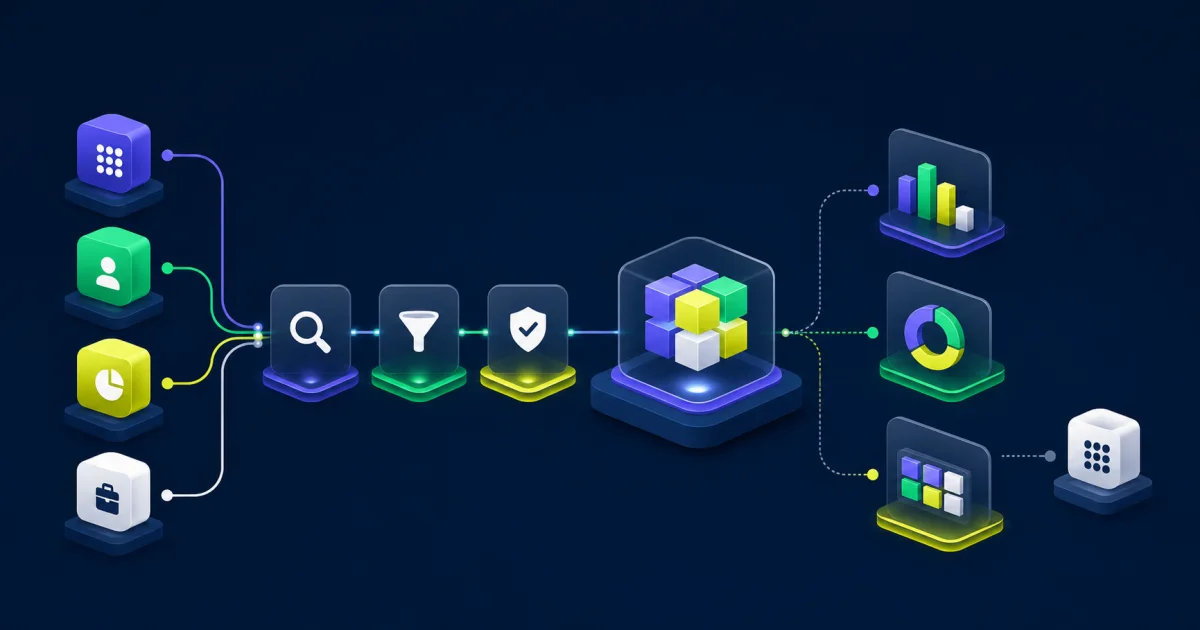
Write the expected result before choosing a calculated-field function. Name the audience, business decision, source population, output type, effective date, and exception behavior. A request for “latest termination date” needs more detail: should the field include future events, rescinded events, rehires, or workers with no termination?
Use a short design statement:
- For each worker in the report population
- Return the effective date of the most recent completed termination event
- Include future-dated completed events
- Return blank when no qualifying event exists
- Use the value in a report column and outbound integration
This statement gives the builder a testable target and gives reviewers a basis for approval.
Choose the correct business object
The business object controls which source fields you can use and where the calculated field appears. Workday creates the field on the selected object and makes it available wherever that object is available, subject to scope and security.
Start with the primary business object of the report, integration, or condition rule that will consume the result. Use the Business Object Details report to inspect related objects and determine whether each relationship returns one instance or several.
Map the path before building
Draw the relationship from the primary object to the target value. A direct single-instance relationship may need one Lookup Related Value field. A multi-instance relationship often requires a condition and an Extract Single Instance field before the lookup can return the desired value.
Keep the path as short as the requirement allows. Extra layers add runtime work and create dependencies that other report writers must trace during support.
Select the field scope deliberately
Workday distinguishes system-wide and report-specific calculated fields. System-wide fields can support several reports and processes. Report-specific fields remain within one custom report definition.
Use a system-wide field for governed reuse
Choose system-wide scope when several reports, integrations, or condition rules need the same approved definition. Assign an owner and document the consumers before publishing it. A change to a shared field can alter output across several processes.
Use a report-specific field for local logic
Choose report-specific scope when the logic serves one report and has no clear reuse value. This keeps the tenant-wide field catalog smaller and lets the report owner maintain the logic with the report.
Report-specific scope does not remove the need for documentation or testing. A field that feeds a Report-as-a-Service integration can still affect a downstream system even though the field is local to one report.
Match the function to the data relationship
Choose the simplest function that produces the required data type and cardinality. The function name should describe the work the field performs.
Lookup Related Value
A Lookup Related Value field promotes a value from a related business object to the primary business object. Workday requires a one-to-one relationship between those objects for this function. Use it when the lookup field returns one related instance.
Extract Single Instance
An Extract Single Instance field selects one item from a multi-instance source by applying a condition and sort order. Define the condition, sort field, direction, and occurrence. Test cases with ties, missing dates, and no qualifying instance.
True or False Condition
A True or False field returns a Boolean result that other calculated fields, report filters, or condition rules can reuse. Keep each field focused on one business rule. A named Boolean field is easier to test than the same condition copied into several expressions.
Evaluate Expression
Evaluate Expression returns the value associated with the first condition that evaluates as true. Order therefore affects the result. Put the narrowest condition first, document the precedence, and include a default outcome.
Use a naming convention that explains the result
A calculated-field name should help another report writer identify the function, business meaning, and important qualifier without opening the definition. Initials, “test,” and project nicknames age poorly.
A useful pattern is:
- Function prefix: LRV, ESI, T/F, EMI, EE, or another agreed abbreviation
- Business result: the value the field returns
- Qualifier: an effective-date, status, population, or inclusion rule that changes interpretation
For example: CF LRV - Most Recent Termination Event Effective Date (Includes Future). Report designers can override the visible column heading for end users while keeping the field catalog descriptive.
Document the tenant-wide convention and apply it to new fields. Do not rename shared fields without checking every dependent report, integration, and condition rule.
Build and test outside production
Create the first version in a non-production tenant. Early attempts often return blanks, the wrong instance, or an unexpected population. A sandbox gives the builder room to inspect relationships and revise the logic without leaving abandoned fields in production.
Use production-like test data where policy and security allow it. Record the expected output for each scenario before running the field.
- A standard worker with one qualifying record
- No qualifying record
- Several qualifying records
- Future-dated and rescinded events
- Worker with multiple positions
- Blank source values
- Boundary dates and equal sort values
- User with restricted security access
Compare the result with the source record, not only with another report that may use the same flawed logic.
Design for performance
Workday evaluates calculated fields at runtime. Deep chains, broad multi-instance fields, repeated conditions, and calculations on large report populations can increase report or integration runtime.
Reduce unnecessary work:
- Start with the most specific source field available
- Filter the report population before applying expensive calculations where the design permits
- Reuse an approved field instead of rebuilding the same logic
- Remove layers that only pass through an unchanged value
- Avoid chains that return to an object already available
- Test with realistic row counts and prompt values
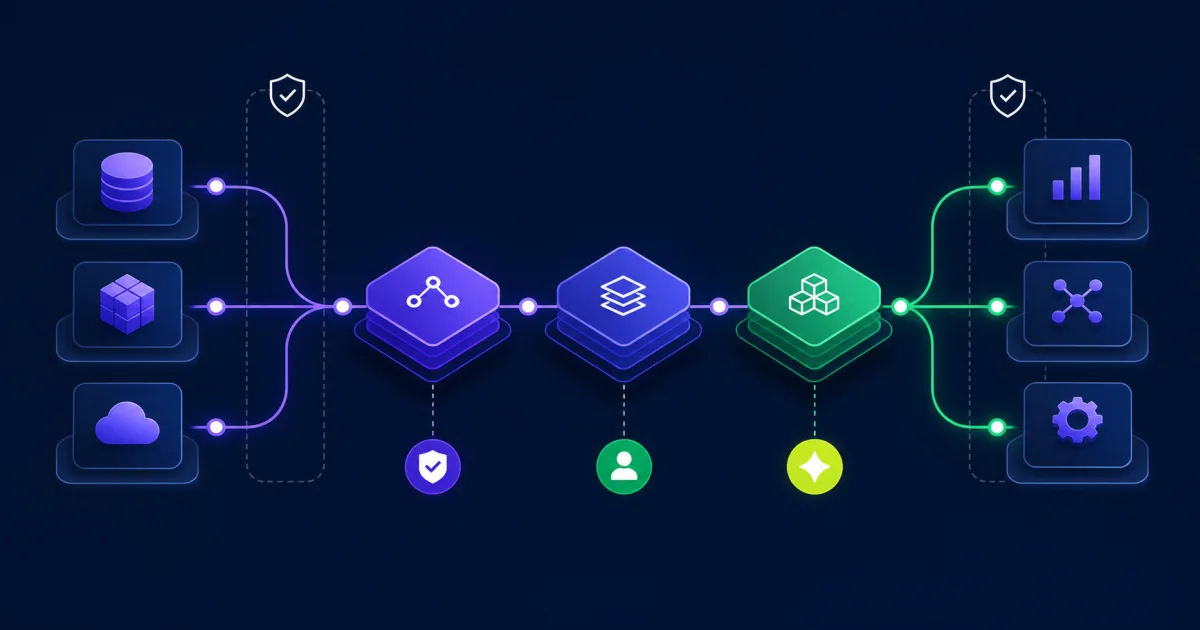
Record a baseline runtime before adding or changing a field. Compare the same report population afterward. If the change creates a material delay, review the source, function, indexing options, and report design.
Review security in the consuming context
A calculated field does not bypass source-field security. Users can receive different results based on their access to the underlying domains and data. Test the report or process as representative security groups rather than relying on an administrator account.
Review security for the report, data source, source fields, calculated fields, integration system user, and downstream destination. A blank value may reflect security rather than faulty logic.
Document dependencies and ownership
Each production field needs a record that a support team can find. Include:
- Field name, business object, function, and scope
- Business definition and owner
- Technical owner
- Source fields and dependent calculated fields
- Reports, integrations, and condition rules that consume it
- Security considerations
- Test cases and expected results
- Change history and retirement status
For complex chains, draw a dependency map. Put the reusable foundation fields at the top and list each consumer below them. This makes impact analysis faster during a release, reorganization, or integration change.
Control changes to shared fields
Treat a system-wide calculated field as shared configuration. Before editing it, identify consumers, confirm the requested behavior, copy the field for testing, compare old and new output, and collect approval from affected owners.
Promote the tested configuration through the normal tenant path. Schedule the change around critical reports and integration runs. The EVOCS Workday release-management guide provides a wider framework for impact assessment, testing, and deployment.
Copy before changing unfamiliar logic
A copied field gives you a safe place to test a revision and compare results. Name the test copy clearly in the non-production tenant. Remove abandoned copies before promotion so they do not become another source of duplicate logic.
Review the calculated-field catalog
Run a periodic review of system-wide and report-specific fields. Look for duplicates, missing owners, obsolete project fields, broken dependencies, confusing names, and fields with no known consumers.
Do not delete a field based on its name alone. Confirm references across reports, integrations, business processes, condition rules, worksheets, and other configuration. Retire fields through a documented change with a rollback plan.
Common Workday calculated-field problems
The field returns the wrong instance
Check the source cardinality, filter condition, sort field, sort direction, and occurrence. Add test records that separate the possible results.
The field works for an administrator but not a user
Compare domain and report security for the user. Confirm access to every delivered and custom field in the calculation chain.
Several fields return the same value
Compare their definitions and consumers. Select one governed field when the business meaning matches, then test and retire duplicates through change control.
A report became slow after a field change
Compare runtime with the same prompts and population. Inspect new multi-instance operations, long chains, broad source fields, and repeated conditions.
Questions about Workday calculated fields
Should every reusable field be system-wide?
No. Use system-wide scope when the organization wants one governed definition across several consumers. Keep local logic report-specific when it belongs to one report.
Can a report-specific field become system-wide?
Workday supports conversion in eligible cases. Convert dependent report-specific fields first, then test every consumer before using the field outside its original report.
Why does an LRV field return blank?
Check whether the lookup returns one related instance, whether the relationship exists for that record, whether the return field contains data, and whether the user can access it.
How many layers are too many?
No fixed number fits every requirement. Each layer should perform distinct work that you can explain and test. Review performance and maintainability when the chain becomes hard to trace.
Make calculated fields supportable
Reliable Workday calculated fields start with a precise requirement and the correct business-object path. Clear names, controlled scope, realistic tests, security checks, and visible ownership keep the logic useful after the original builder moves on.
EVOCS helps teams design reporting standards, review complex field chains, and establish governance for Workday reporting and integrations. If your tenant has duplicate logic or critical fields that no one wants to change, schedule a strategy conversation.