
Workday Worksheets gives analysts a spreadsheet-style workspace inside Workday for modeling, analysis, and collaboration. A workbook can combine formulas, charts, pivot tables, user-entered assumptions, and data from eligible Workday reports. The result can support compensation analysis, reconciliations, forecasts, and operational reviews without moving the entire task into a separate spreadsheet tool.
The familiar grid can create false confidence. Teams still need to choose the right source report, understand refresh behavior, control sharing, test formulas, and assign an owner. This guide explains how to design Workday Worksheets that people can use without losing track of data lineage or security.
What Workday Worksheets is designed to do
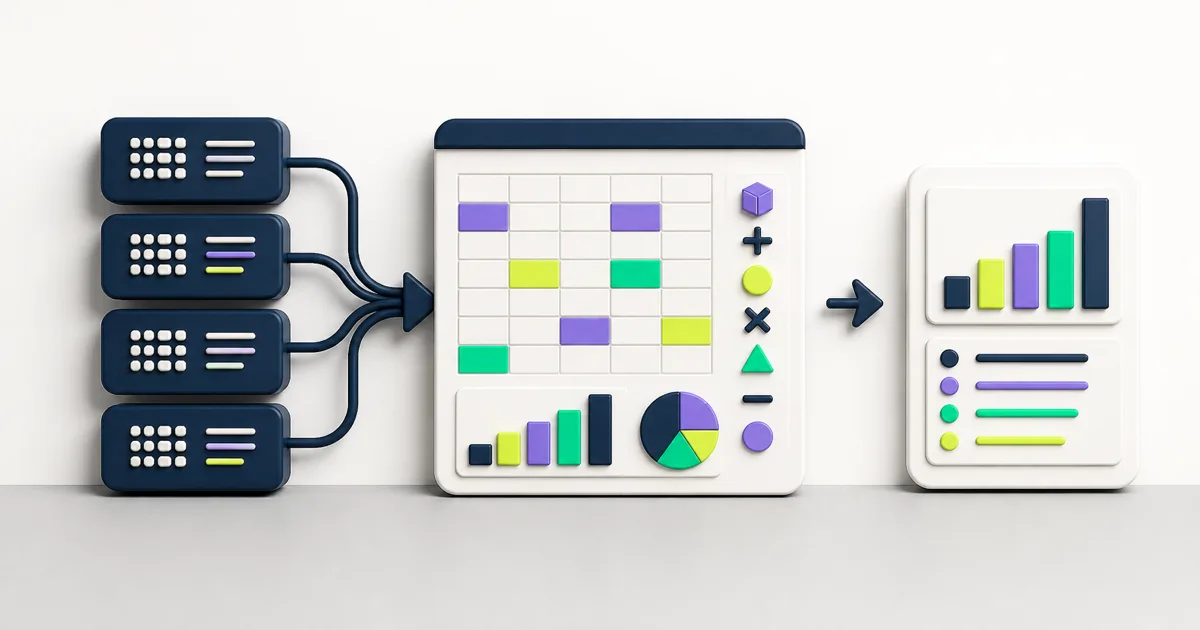
Workday Worksheets supports spreadsheet-based analysis with Workday data and collaboration through Workday Drive. Teams can create a blank workbook, upload a supported file, export report results as static data, or add eligible report data through the Data Wizard.
Use Worksheets when the task needs a flexible model, shared working area, or analysis that sits between a standard report and a formal application process. A workbook can help analysts compare scenarios, add notes, build formulas, and present a focused result. It should not replace a governed business process, integration, or reporting catalog when those tools fit the requirement.
Choose a use case with clear boundaries
Start with the decision and the people involved. A compensation workbook may combine current worker data, proposed changes, budget assumptions, and review notes. A finance workbook may support cash forecasting or account reconciliation. Each case needs different refresh, edit, sharing, and approval rules.
Write a short workbook brief:
- Which decision or process does the workbook support?
- Who owns the source reports and workbook?
- Which users can view, comment, edit, or refresh?
- Which data should remain live, and which values should remain a snapshot?
- Which assumptions may users change?
- Which output becomes the approved result?
- How long should the workbook remain active?
A clear boundary prevents a temporary analysis from becoming an undocumented operating system.
Understand live data and static values
The Data Wizard can insert report results as live data or static values. Live data keeps a one-way connection from the Workday report to the workbook. A refresh replaces the report-backed values and recalculates formulas affected by the change. The workbook does not write those values back to the source report.
Static values capture a snapshot at the time of insertion. They do not update when the underlying Workday records change. Static data can help preserve a point-in-time analysis, but the workbook needs a visible extraction date and source note so users do not mistake the snapshot for current data.
Choose live data when the model needs updates
Use live data for a workbook that users revisit as Workday records change. Document who can refresh, which prompts apply, and whether the owner schedules refreshes. A scheduled refresh can change the data that shared users see, so treat the schedule as part of the workbook’s security and operating design.
Choose static values for a controlled snapshot
Use static values when the analysis must preserve the source result from a defined date or event. Protect the snapshot from casual editing, label it, and keep the original report parameters with the workbook’s documentation.
Prepare the source report for Worksheets
Workday’s live-data guidance states that the source must be an eligible advanced, matrix, or composite report. The report needs the required Worksheets settings, supported field types, unique column labels, and prompts that Worksheets can run.
Build and test the report before adding it to the workbook. Confirm its primary object, filters, prompts, sorting, security, and row volume. If the report returns the wrong population, formulas in the workbook will produce a polished version of the wrong answer.
Use one sheet for each live-data source
Workday recommends placing each report’s live data on a separate sheet. This makes refresh behavior and data lineage easier to trace. Build calculation and presentation sheets that reference those source sheets instead of mixing imported data, assumptions, and final output in one range.
Set global prompts with care
Global prompts can apply shared values across several live-data areas in a workbook. They can keep organization, date, or other report parameters aligned. Test each mapping because a field with a similar label may use a different object or value type.
Build a workbook people can maintain
Separate source data, assumptions, calculations, checks, and presentation. Give each sheet a plain-language name and put a short instruction block near the top. Users should know which cells they may change and which ranges come from Workday.

A practical workbook structure might include:
- Read Me: purpose, owner, audience, refresh instructions, and support path.
- Source sheets: one tab for each live or static report extract.
- Assumptions: controlled inputs with definitions and owners.
- Calculations: formulas and transformation logic.
- Checks: reconciliations, exception counts, and control totals.
- Output: the summary, chart, or decision view users need.
Use structured references where they help
For advanced-report live data, Worksheets can create named tables and structured references. A formula can reference a table and column name instead of a fixed cell range. Workday updates the referenced range as live data changes, which reduces failures caused by added or removed rows.
Give tables and columns clear names. If another workbook references them, document that dependency because a rename may require a manual update in the consuming workbook.
Control formulas and assumptions
Keep formulas consistent across repeated rows and separate user inputs from calculated output. Add reconciliation cells for totals, counts, and exceptions. Protect ranges where users should not edit, but remember that live-data refreshes can update protected report-backed areas.
Complex Workday calculations may belong in the source report when several workbooks or reports need the same governed definition. The EVOCS Workday calculated fields guide explains how to assign ownership and reduce duplicate logic.
Treat sharing as a data-security decision
Workbook sharing does not behave like running a Workday report from scratch for each viewer. Workday’s reporting guidance warns that shared users can see data already present in a workbook even if their normal security would prevent them from retrieving it. The user who refreshes live data can also affect which data becomes visible to other shared users.
Review workbook content before sharing:
- Identify personal, compensation, financial, or regulated data.
- Confirm who can view, comment, edit, and refresh.
- Test how data changes when different users refresh.
- Remove hidden data that recipients do not need.
- Check comments, formulas, charts, pivots, and cached output for sensitive values.
- Record the owner and sharing approval.
- Review access after role, team, or organizational changes.
Use workbook templates for user-specific security
A workbook template can distribute the model and its live-data connections rather than one populated workbook. Each user creates a workbook from the template and retrieves data under that user’s Workday security. This pattern can provide safer self-service when several users need the same analysis but should not see the same population.
Templates still need controlled formulas, source reports, documentation, and testing. Confirm how refresh permissions and report access behave for each intended audience.
Design refresh and version controls
Record the last refresh, prompt values, owner, source-report version, and workbook version. Users need to know whether a number reflects the latest Workday data or a prior snapshot.
Before changing formulas or report columns, copy the workbook and test the new version. Reconcile old and new output with the same source population. If the source report changes, check every workbook that depends on it and confirm that table names, column names, formulas, and charts still work.
Schedule refreshes for a defined business need. A refresh can recalculate formulas and change shared results. Name the owner who reviews exceptions after the schedule runs and the person users should contact when a refresh fails.
Test the workbook as an operating tool
Test the source, model, permissions, and user workflow. A formula that works on sample rows can fail when live data introduces blanks, new categories, long text, negative values, or a changed row count.
- Reconcile source totals with the underlying Workday report.
- Test each prompt and expected population.
- Refresh as the owner and as representative shared users.
- Confirm formulas across blank, duplicate, zero, and high-value records.
- Check structured references after row and column changes.
- Validate charts, pivots, filters, subtotals, and output sheets.
- Review the workbook for hidden sensitive data.
- Test scheduled refreshes and failure handling.
- Confirm that users can explain the result and next action.
Keep test evidence for workbooks used in compensation, payroll, financial reporting, compliance, or executive decisions. A workbook can be flexible and still require the same control discipline as another decision-support tool.
Choose the right tool for the requirement
Use a standard or custom report when users need governed, repeatable output without spreadsheet modeling. Use a dashboard when they need a curated set of reports and tasks. Use Discovery Boards for interactive visual analysis. Use an integration or business process when data must move or trigger controlled actions.
Workday Worksheets fits problems that need a spreadsheet model, Workday data, and collaboration. Teams should keep Excel when an external process, partner, macro, or feature requires it. The aim is a supportable solution, not the removal of every external spreadsheet.
For a broader view of source selection and report governance, see the EVOCS Workday reporting guide.
Common Workday Worksheets problems
Live data does not refresh
Check workbook permissions, source-report access, Worksheets enablement, report type, prompts, and ownership. Confirm whether the user can refresh that range or whether the owner restricted refresh access.
Different users see unexpected data
Review who populated or refreshed the workbook, which data remains stored, and how the workbook is shared. Consider a workbook template when each user needs a security-filtered copy.
Formulas break after a report change
Compare table names, column names, data types, and row structures with the earlier report version. Restore the prior source or update and retest every dependent formula and output.
The workbook has become a permanent process
Document the workflow, decisions, controls, owners, and dependencies. Then decide whether the requirement belongs in a governed report, integration, application, or business process.
Questions teams ask about Workday Worksheets
Does Workday Worksheets replace Excel?
No. Worksheets adds spreadsheet analysis and collaboration inside Workday. Excel may remain appropriate for external data, macros, partner workflows, or features that Worksheets does not support.
Does live data update itself at every moment?
No. Live data maintains a connection to its Workday report, but a user or schedule must refresh it. Label the last refresh and prompt values so readers understand the result.
Can a workbook combine several Workday reports?
Yes. A workbook can contain more than one live-data area. Keep each source on its own sheet and use global prompts when the reports need aligned values.
How should teams share sensitive analysis?
Review the populated workbook and its permissions before sharing. Use a workbook template when recipients need the same model but should retrieve data under their own Workday security.
Build Worksheets models users can trust
Workday Worksheets can shorten the path from report data to analysis when teams control the source, formulas, refreshes, and sharing. Clear ownership and test evidence matter more than a polished chart.
EVOCS helps organizations design, test, and govern Workday reporting and analytical tools. If a critical workbook has become difficult to explain or support, schedule a strategy conversation. We can help assess the model and define a practical path forward.